






📑 Contents
🖱️ PC Mouse – Use & Troubleshooting- ❓ My cursor moves on its own
- ❓ Adjusting sensitivity (DPI)
- ❓ Unable to connect via Bluetooth
- ❓ Slow response or disconnections
- ❓ What are the buttons for?
- ❓ Defective scroll wheel
- ❓ Left or right click not working
- ❓ Wired mouse not recognised
- ❓ USB dongle not detected
- ❓ Lost receiver
- ❓ Pairing a mouse correctly
- ❓ Dual connection (Bluetooth + 2.4 GHz)
- ❓ Choosing a suitable keyboard
- ❓ Keyboard not responding
- ❓ Bluetooth connection
- ❓ Keys sticking
- ❓ Using two keyboards
- ❓ Problem after an update
- ❓ Ergonomic benefits
- ❓ Configuration software
- ❓ Tablet/smartphone compatibility
- ❓ Best choice for video conferences
- ❓ Not detected in Teams/Meet
- ❓ Differences between USB and Bluetooth
- ❓ Improving microphone quality
- ❓ Cross-platform use
- ❓ Lost connections
- ❓ Battery life and comfort
- ❓ Cleaning
- ❓ Tablet/mobile compatibility
- ❓ PC/software compatibility
- ❓ Choosing the right charger
- ❓ USB-C vs standard charger
- ❓ GaN technology
- ❓ Using a universal charger
- ❓ Compatibility with brands
- ❓ A more powerful charger
- ❓ Looking after your charger
- ❓ Charger plugged in but not working
- ❓ Using it for smartphones/tablets
- ❓ Universal vs specific
- ❓ Definition of a USB hub
- ❓ Uses
- ❓ Types available
- ❓ Compatibility with PCs
- ❓ Powered or unpowered hub
- ❓ Use with a laptop
- ❓ Fast charging support
- ❓ How to choose a hub
- ❓ Connecting multiple screens
- ❓ Where to buy a reliable hub
- ❓ Connecting multiple screens
- ❓ Black screen
- ❓ Installing drivers
- ❓ Charging your PC
- ❓ Computer compatibility
- ❓ Use with a MacBook
- ❓ Shut-down PC & external displays
- ❓ Connecting a tablet or smartphone
- ❓ Compatible screen types
- ❓ Keyboard/mouse not working
- ❓ Usefulness
- ❓ Choosing the right filter
- ❓ Impact on the display
- ❓ Screen/laptop compatibility
- ❓ Installation
- ❓ Touchscreen compatibility
- ❓ Shared use
- ❓ Maintenance
- ❓ Blue light protection
- ❓ Lifespan
🖱️ PC Mouse FAQs – Use & Troubleshooting
Erratic cursor movement can be caused by an unsuitable surface (glass, shiny patterns), a dirty optical sensor, or wireless interference. Try cleaning the sensor underneath the mouse, use a standard mouse mat, and move any metal objects or other Bluetooth devices out of the way.
DPI (dots per inch) determines the pointer’s precision and speed. A high DPI allows for rapid cursor movements, whilst a low DPI promotes precision. Many mice have a button to adjust the DPI on the fly, depending on the task (office work, image editing, web browsing, etc.).
Make sure Bluetooth is enabled on your device. Then put the mouse into pairing mode (the LED will flash) and search for it in your Bluetooth settings. If it has been connected before, remember to remove it and start the process again.
Intermittent latency may be caused by a low battery, software conflicts or interference on the wireless signal. Recharge the mouse, close resource-intensive applications and avoid using several Bluetooth devices simultaneously in the immediate vicinity.
As well as the left and right clicks, some mice have programmable shortcuts (e.g. forward/back, copy/paste, DPI). These buttons can often be configured via software, allowing you to optimise your user experience for office work or web browsing.
If the scroll wheel is stuck or unresponsive, this may be due to a build-up of dust or a mechanical fault. Gently clean the scroll wheel with a dry air blower. Also check the scrolling settings in your operating system (Windows/Mac).
Before considering replacing it, try plugging the mouse into another computer or USB port. If the problem persists, it is likely due to a worn-out internal switch or a driver issue. A mouse’s lifespan is generally estimated in terms of the number of clicks.
Try a different USB port, restart the computer, then test the mouse on another device. If it still doesn’t work, the problem may be caused by an internal cable fault, a damaged connector or a software incompatibility.
Check that it is properly inserted, use a different port if necessary, and avoid unpowered USB hubs. Some receivers require a specific driver or software provided by the manufacturer. Also try testing it on another device.
In most cases, dongles are not universal: each receiver is paired with a specific mouse. It is therefore often necessary to buy the same model again, or to contact the manufacturer’s customer service to obtain a compatible replacement dongle.
1. Turn on Bluetooth on your computer or tablet. 2. Switch on the mouse and press the pairing button (usually located underneath the device). 3. Wait for the LED to flash, indicating that the mouse is discoverable. 4. Select the mouse from your device’s Bluetooth menu. Some models require you to hold down the pairing button for several seconds.
Make sure you have selected the correct connection mode (some models have a button to switch between the two). In Bluetooth mode, follow the pairing procedure. In 2.4 GHz mode, the dongle must be plugged in and will be recognised automatically.
⌨️ FAQ – PC keyboards (office use)
For everyday use, opt for a comfortable keyboard with quiet keys and a good key layout (AZERTY in France). Wired keyboards are often more stable, whilst wireless keyboards offer greater freedom of movement.
There could be several reasons for this: a low battery in a wireless keyboard, a Bluetooth or USB connection issue, or a driver that needs updating. Try reconnecting the keyboard, changing the batteries or restarting the computer.
Turn on Bluetooth on your computer, put the keyboard into pairing mode, then search for it in the Bluetooth settings to pair it. Some keyboards require you to enter a code when connecting for the first time.
Clean the keys carefully and check that nothing is blocking the mechanisms. If the problem persists, it may be a hardware or software fault. Testing it on another computer may help to identify the cause.
Yes, you can plug in a wired keyboard and pair a wireless keyboard at the same time, but avoid using both simultaneously to prevent conflicts. Disconnect the one you’re not using.
Sometimes updates modify or reset drivers. Check in Device Manager that the keyboard is recognised, and update or reinstall the driver if necessary.
Ergonomic keyboards are designed to reduce fatigue and pain associated with prolonged use, thanks to a shape that suits the natural position of the hands.
Some keyboards, particularly those with multimedia or programmable keys, require software provided by the manufacturer to customise their functions.
Yes, if your tablet or smartphone supports a keyboard via Bluetooth or USB OTG, you can use it to type more easily.
🎧 FAQ – Office Headsets
Opt for a comfortable headset with a good noise-cancelling microphone to reduce background noise. Wired USB or jack headsets are often more reliable, but Bluetooth wireless headsets offer greater freedom. Also check that they’re compatible with your software.
Make sure it’s properly connected, selected as the audio device in the app’s settings, and that the drivers are up to date. Restarting the app or your computer can sometimes solve the problem.
A USB headset plugs directly into the computer and offers a stable connection, often with better audio quality. Bluetooth allows for mobility but can be prone to interference or slight latency.
Use a headset with active noise cancellation or a noise-cancelling microphone, speak close to the microphone, avoid noisy environments and check the microphone settings in your software.
Yes, most USB- or Bluetooth-compatible headsets work with Teams, Google Meet, Zoom, Skype, etc., without any additional configuration.
Try moving the USB receiver closer to your computer, avoid metal obstacles, recharge the headset’s battery, and check that no other Bluetooth devices are causing interference.
Wired headsets have no battery life limitations and are generally lighter, whilst wireless headsets offer freedom of movement but need to be recharged regularly.
Use a soft, slightly damp cloth; avoid harsh chemicals and do not get the electronic parts or the microphone wet.
Yes, if your device supports USB or Bluetooth, you can use your headset for calls and video conferences on these devices
Check the compatibility details on the product page (USB, Bluetooth), the supported operating systems (Windows, Mac, Linux), and the manufacturer’s recommendations for Teams or Google Meet.
🔌 FAQ – PC power supplies and chargers
You need to check the power requirement in watts (W) for your computer, the connector type (USB-C, standard, proprietary) and compatibility with your brand (HP, ASUS, Lenovo, Acer, Dell, Toshiba). A universal charger may be suitable if you select the correct power rating and plug type.
A USB-C charger uses a reversible cable and is often more compact. It can support fast charging thanks to Power Delivery (PD) technology. Standard chargers have a cable with a specific plug and sometimes a fixed power rating.
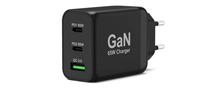
GaN chargers are more compact and efficient than standard chargers. They generate less heat and can deliver higher power in a smaller form factor, making them ideal for modern laptops and fast charging.
Yes, provided that the power rating (in watts) matches the manufacturer’s recommendation and the plug is compatible. Using a charger with too low a power rating may damage the battery or slow down charging.
Check your PC or its documentation for the required power rating (e.g. 65 W, 90 W) and the type of plug. On our product pages, each dedicated power supply clearly lists the compatible models.
Yes, this is possible and often recommended to prevent the charger from overheating. The PC will only draw as much power as it needs. However, a charger that is too weak will not work properly.
Avoid kinking the cable too tightly, do not pull on the lead, unplug it properly, and keep it away from damp and extreme temperatures.
This could be due to a damaged cable, a problem with the wall socket, or the charger itself. Try using a different cable or socket. If the charger is hot and not charging, it may be faulty.
Yes, particularly with USB-C and GaN chargers, but check that the power output is suitable for the device. Smartphones will charge more slowly on a charger that’s too powerful, but this is safe.
A universal charger comes with several interchangeable plugs and sometimes features power adjustment. A brand-specific charger is designed for a specific model or brand, with no option to adjust the settings.
🔗 FAQ – USB HUB
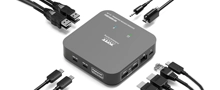
A USB hub is a device that allows you to connect several USB peripherals to a single USB port on your computer.
It makes it easier to connect several accessories (keyboard, mouse, USB stick, printer) when your PC has a limited number of USB ports.
There are USB 2.0, 3.0 and 3.1/3.2 hubs, offering different transfer speeds, as well as powered (with a mains plug) and unpowered hubs.
Yes, as long as the computer has a USB port that is compatible with the hub (USB-A or USB-C, depending on the model).
A powered hub has an external power supply, which is ideal for connecting several power-hungry devices. An unpowered hub draws its power solely from the computer’s USB port.
Yes, this is often very useful for increasing the number of ports available on a laptop.
No, only certain models support fast charging. Check the specifications before buying if this feature is important to you.
Decide how many ports you need, the desired transfer speed, USB compatibility (Type A or C) and whether you need a powered hub.
No, a USB hub is not designed to connect monitors. For this, you need to use a docking station or a specific hub with a video output.
On our website, we offer a selection of USB hubs suitable for various uses and compatible with different PCs.
🖥️ FAQ – PC docking stations for 1 to 3 monitors
Yes. Some docks allow you to connect up to 3 external monitors. This depends on the model you choose and your computer’s capabilities.
Check that: • the cable is properly connected, • the screen is switched on, • the correct source is selected (HDMI/DP), • and that the docking station is properly connected to the computer. Restarting the computer often resolves the problem.
Some docking stations work automatically, but others require a small piece of software (driver) to be installed. This is usually available online from the manufacturer.
Yes, if the dock is equipped with the Power Delivery feature. This allows you to charge your computer via a single USB-C cable, without the need for an additional adapter. Some models do not support this: be sure to check this.
Most recent computers are compatible. Just make sure you have: • an available USB-C or USB-A port, • and an up-to-date operating system (Windows, macOS or Chrome OS). To connect multiple screens, your PC must also be capable of supporting them.
Yes, the docks are compatible with most MacBooks. Please note, however: • Some models (basic M1/M2 Macs) only support a single external screen, unless you use a special dock (DisplayLink).
No. You can work perfectly well with the laptop lid closed, using only the external screens. You simply need to adjust the power settings in your system preferences.
Yes, if your device has a USB-C video port. Some Android tablets and smartphones allow you to display the screen on a monitor via the docking station.
Most docks are compatible with HDMI or DisplayPort screens. For older VGA or DVI screens, an adapter may be required.
Try plugging the accessories into other USB ports on the docking station. Also check that the docking station is properly powered, and restart the computer if necessary.
🛡️ FAQ – Computer screen privacy filters
A privacy filter prevents people around you from seeing what is displayed on your screen. It protects your confidential data by limiting the side viewing angle.
You should choose a filter that matches the size and aspect ratio (16:9, 16:10, 4:3) of your monitor or laptop. Also make sure it’s compatible with your model.
Yes, the filter may slightly darken the screen or reduce the brightness, but most modern models optimise visibility to ensure it remains comfortable to view.
Yes, there are filters specifically designed for laptops and models suitable for external monitors. Choose the filter based on the size and shape of your screen.
Most filters can be easily attached using adhesive strips, magnetic strips or clips, without damaging the screen. Follow the instructions supplied with the product.
Some filters are compatible with touchscreens, but you should check this before buying to ensure you don’t lose touch sensitivity.
No, the filter restricts side-view visibility. If several people are looking directly at the screen in front of you, they will be able to see the image as normal.
Clean it with a soft, dry or slightly damp cloth; avoid using chemicals that could damage the surface.
Some models feature blue light protection, which helps reduce eye strain during prolonged use.
A well-maintained filter can last for several years, depending on how often it is used and how carefully it is cleaned and handled.
🔒 FAQ – PC security cables
A security cable is used to protect your desktop or tower computer from theft by securing it to a fixed object (desk, stand).
Check that the cable is compatible with your PC case (to ensure it has a lock slot). Choose the length and strength suitable for your working environment.
Yes, some desktop PCs have a specific slot for a security cable, often called a Kensington slot. Otherwise, there are solutions available to suit different models.
No, the cables are designed to be used without damaging your case. It is advisable to choose a cable with a protective sheath to prevent any scratches.
Insert the lock into the designated slot, loop the cable round a fixed object and lock it using the key provided.
Contact the manufacturer to request a replacement key. Do not attempt to force the lock, as this may damage your PC.
They mainly protect against quick or opportunistic thefts. A sturdy cable acts as a deterrent, but a determined thief may still try to cut it.
A key-operated cable is unlocked with a physical key, whilst a combination cable is unlocked using a personalised code. The choice depends on your preference.
Store it away from damp, avoid bending it too sharply and check its condition regularly.
On our website, you’ll find a full range of security cables specially designed for desktop PCs.
🚪 FAQ – Charging cabinets for PCs and tablets
A charging cabinet allows you to charge, store and secure several laptops or tablets simultaneously in a secure space.
You need to consider the capacity (number of slots), compatibility with device sizes, security features (locking, alarm) and ventilation systems.
Most are designed to accommodate a wide range of standard devices. Always check the internal dimensions to ensure compatibility.
Yes, they are ideal for schools, businesses, hospitals or any location where multiple devices need to be charged and kept secure.
Each slot is fitted with an individual power cable (USB, mains or USB-C, depending on the model), allowing all devices to be charged simultaneously.
Some cabinets feature built-in surge protection to safeguard your devices whilst they are charging.
Most have castors to make them easier to move, but they are still heavy once loaded.
The cabinets usually have a sturdy lock (key or code) and sometimes alarms to prevent theft or unauthorised access.
No, they usually operate from a standard electrical socket, but do check the power requirement based on the cabinet’s capacity.
On our website, we offer several models suited to different needs and budgets, with a range of security and capacity options.