






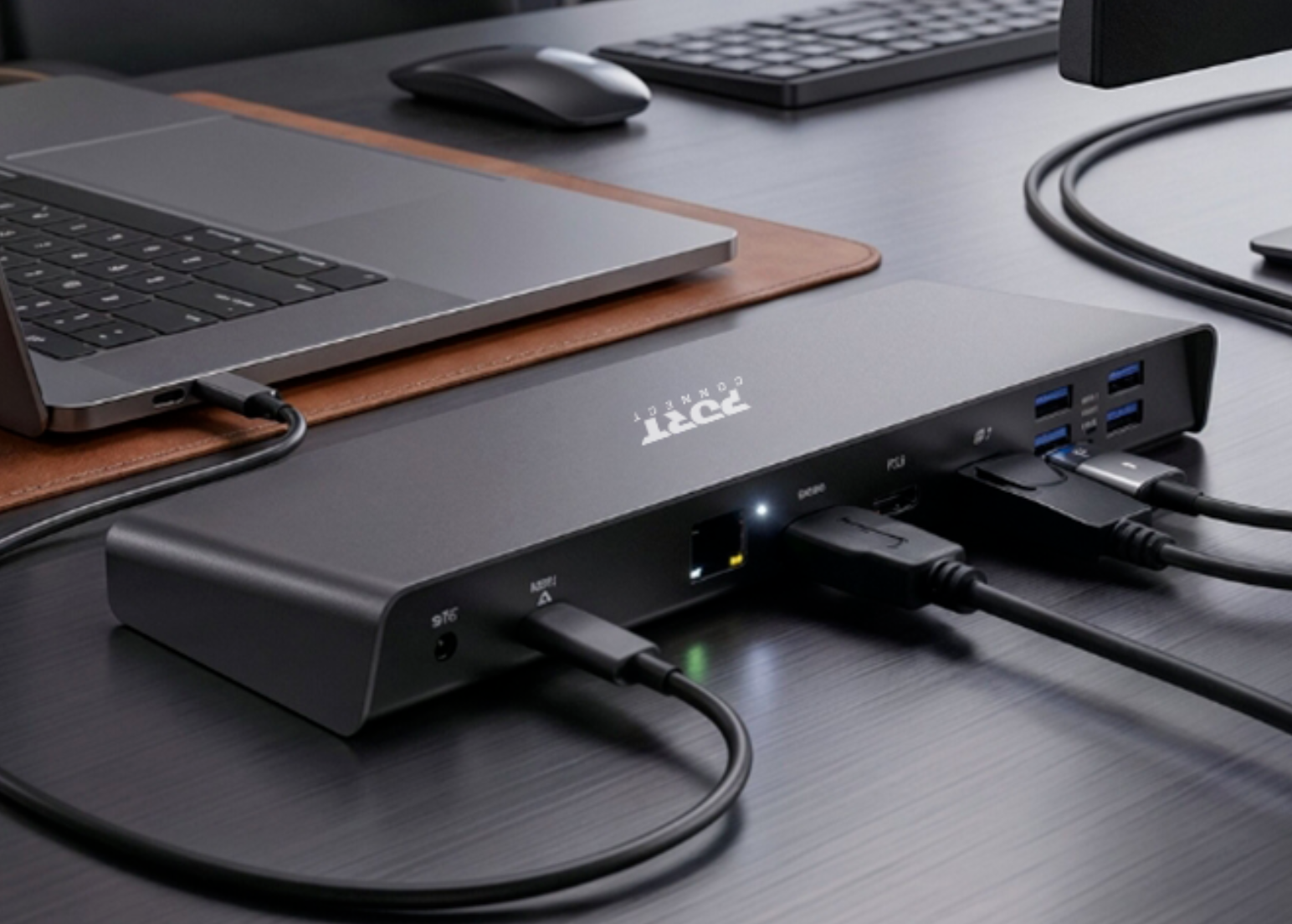
Choosing the right laptop docking station
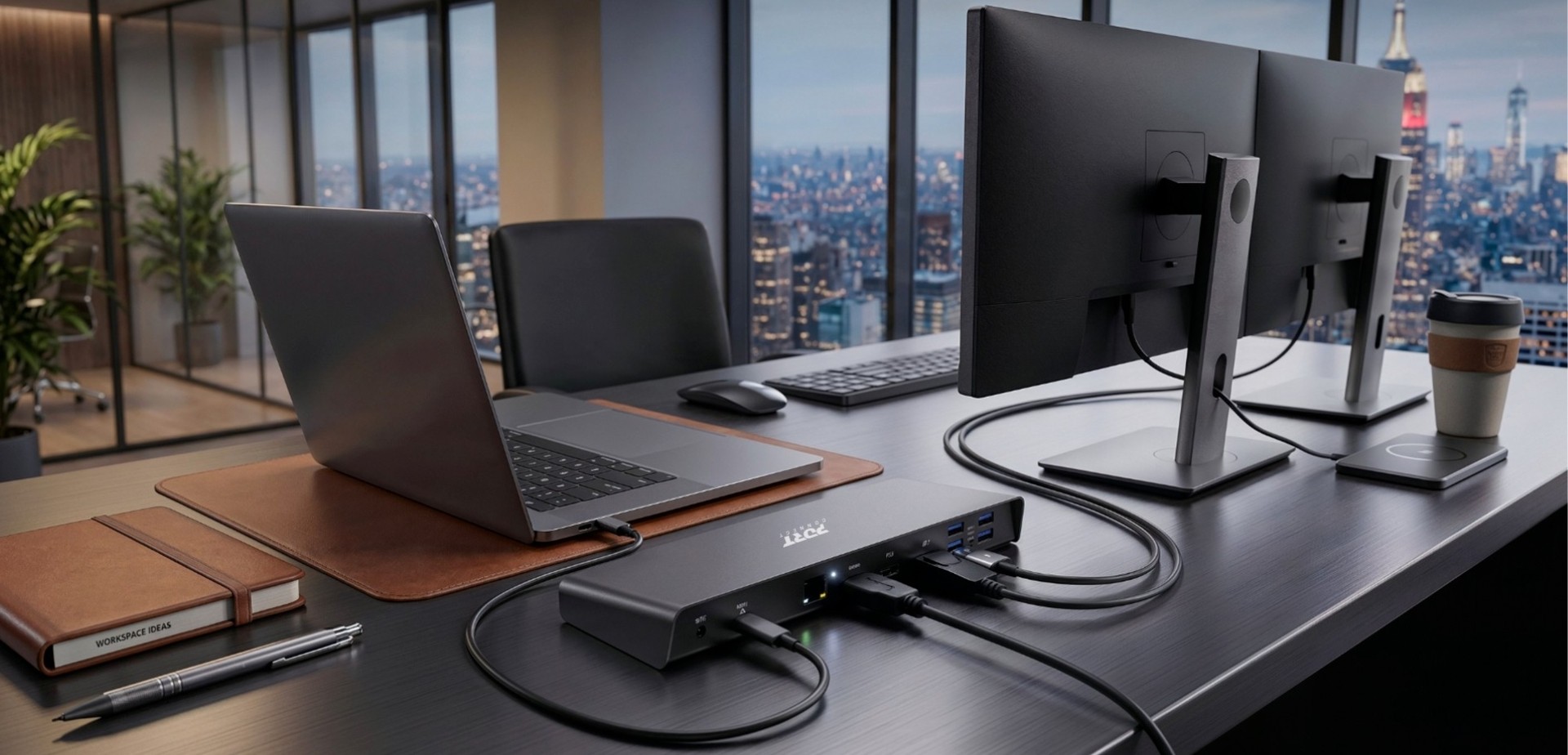
With the rise of ultrabooks, MacBooks and slim laptops, manufacturers are now prioritising performance, slimness and portability at the expense of connectivity. A docking station allows you to transform a single port (often USB-C or Thunderbolt) into a fully-fledged connectivity hub.
🎯 The aim of a docking station: to simplify your workspace and boost your productivity.
- Charge your computer (Power Delivery)
- Connect multiple screens (HDMI / DisplayPort / VGA)
- Access a wired network (Ethernet RJ45)
- Connect your peripherals (USB-A / USB-C)
- Manage audio, storage and accessories
So how do you choose the right docking station? OS compatibility, number of screens, Power Delivery, USB-C or Thunderbolt: the complete PORT Connect guide to finding your ideal model.

A solution that transforms your working day
Beyond connectivity, choosing the right docking station means greater comfort, efficiency and peace of mind in your daily work. No more juggling cables every time you start work, having to do without a device because there’s no available port, or putting up with the slowness of an unstable Wi-Fi connection when a reliable Ethernet network is within reach.
A well-chosen docking station is a workstation designed for your needs, stable, organised and immediately operational from the moment you plug it in. It also promotes better posture: by connecting your laptop to one or more external screens, you eliminate neck strain caused by prolonged use of a small screen held at a low position. Workstation ergonomics is a benefit that is often underestimated, yet it is directly linked to your well-being and long-term productivity.
For businesses and IT teams, the docking station also represents a powerful tool for standardisation: a single model deployed across all workstations ensures a consistent experience for all staff, simplifies maintenance and reduces costs associated with connectivity issues. An investment that pays for itself within the first few weeks of use.
4 mistakes to avoid before buying a docking station
- Windows, macOS and Linux handle docking stations differently, particularly when it comes to multi-screen displays
- A model that works perfectly on Windows may be unstable or severely limited on a MacBook
- Certain drivers (DisplayLink™, Silicon Motion™) are essential on macOS; without them, the screens remain black
All our docking stations are designed for universal compatibility with Windows, macOS and Chrome OS. Our models, such as the 1X 4K USB-C Mobile Docking Station with 9 ports and 85W power delivery, are labelled "Plug and Play: no drivers required", guaranteeing an immediate connection without complex configuration, whatever your operating system.
- A USB hub simply multiplies the number of USB ports — it does not support video, charging or Gigabit networking
- Only a docking station can transform a laptop into a fully-fledged desktop workstation
- Confusion between the two products often leads to an unnecessary second purchase
Our docking stations integrate all essential connections into a single unit.
The 3X 4K USB-A & USB-C 12-Port 85W Desktop Docking Station is the perfect example: HDMI and DisplayPort video outputs, Ethernet, USB-A and USB-C ports, 85W power supply – everything you need for a complete workstation, without compromise.
- The dock consumes some of the power it receives: your laptop may charge more slowly than when plugged in directly
- Gaming or business laptops often require 90W or more — insufficient power can cause the battery to drain gradually even when plugged in
- The Power Delivery rating (in watts) must be checked before making a purchase
Every product in our range clearly displays its Power Delivery rating.
Our docks cater to all needs: 60W for light mobility (Mini Mobile Dock 1X 4K 3-port), 85W for intensive office use, and up to 100W for the most power-hungry laptops (2X 4K USB-C Mobile Docking Station with 7 ports). You can charge your computer at full power whilst managing all your peripherals simultaneously.
- An underpowered docking station may only be able to power one out of two screens, or display a reduced resolution
- The number of screens (1, 2 or 3+) is the main factor determining the range and price
- The target resolution — Full HD, 4K, 8K — must be defined before any purchase to avoid unpleasant surprises
Our range covers all display configurations, from a single screen to a triple 4K setup.
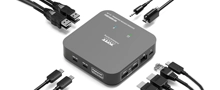
For mobile use, the 1X 4K USB-C Mobile Station (7-port) offers 4K display via HDMI or DisplayPort. For an advanced workstation, the 2X 4K USB-C 11-Port 96W Desktop Station supports simultaneous dual/triple 4K displays.
Our guide below helps you identify the docking station that perfectly matches your setup in just 4 steps.

I. What connectivity does your computer have?
The first question to ask is which port is available on your machine: USB-A or USB-C?
This choice determines the full range of compatible products.
- USB-C / Thunderbolt™: Current technology, high-speed, integrated Power Delivery. Recommended for recent ultrabooks, MacBooks and latest-generation business PCs.
- USB-A: A standard still widely used on older-generation machines or business computers.

2. What is your main use: on the move or at a fixed desk?
Your usage conditions determine the form and features of your docking station.
On the move (travelling, business trips): Mobile docking stations are compact, lightweight and slip easily into a briefcase. They are self-powered via the USB port — no mains adapter is required. They offer the essential ports for a quick connection during meetings or whilst on the move.
👉 Discover our mobile docking stations
For stationary use (fixed workstation): Desktop docking stations offer comprehensive connectivity: USB-A, USB-C, HDMI, DisplayPort, RJ-45 Gigabit, audio jack, SD card reader. They are mains-powered and designed to remain plugged in at all times. Ideal for staff who need an advanced, ergonomic workstation.
| Configuration | Typical user profile |
|---|---|
| 1 screen | Accounting, administration |
| 2 screens | Marketing, development, project management |
| 3 screens | Engineers, graphic designers, finance |
3. How many monitors do you want to connect?
The number of screens is the main factor influencing the range and price of a docking station. Determine this requirement before considering any other criteria.
Resolution matters too. A graphic designer or video professional will need a 4K display or higher, whilst standard office use will be satisfied with Full HD (1080p).
Our docking stations cover all resolutions: Full HD, QHD, 4K, up to 8K on high-end Thunderbolt models.
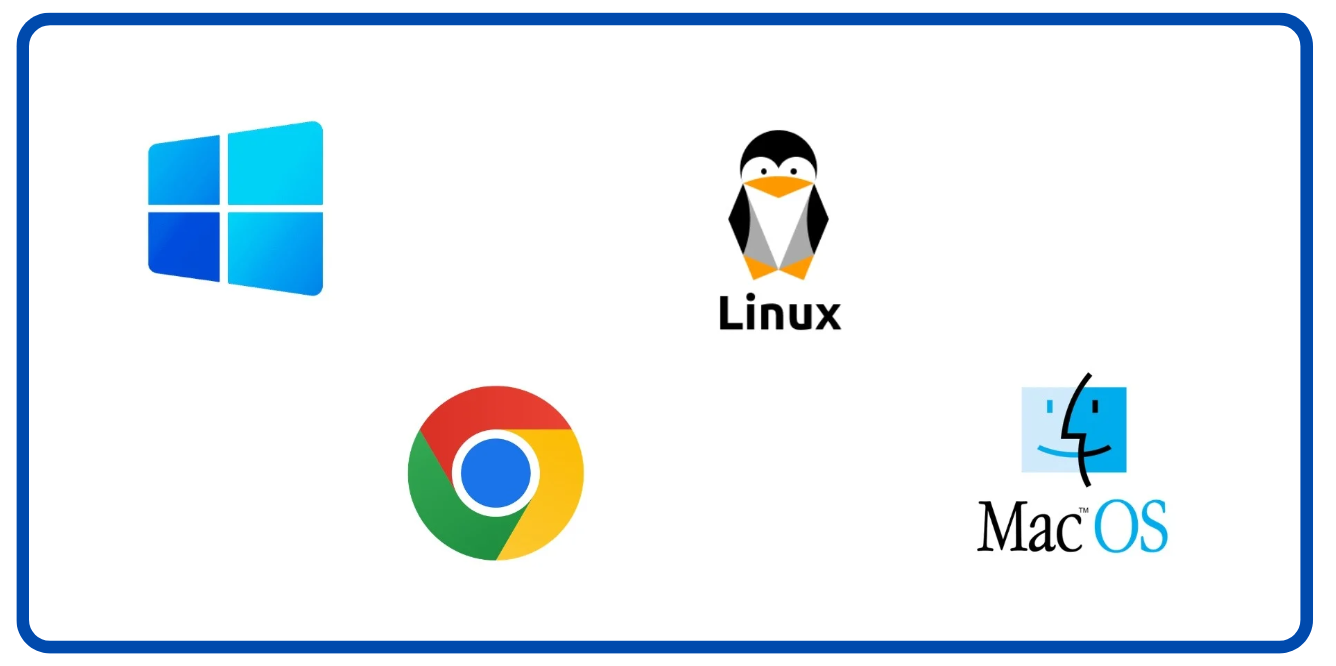
4. Which operating system do you use?
The question of the operating system is particularly critical for multi-screen setups.
Windows®, Linux® and Chrome OS™: Installing additional drivers is generally not necessary. These systems natively support mirrored or extended display modes across multiple monitors simultaneously.
👉 Multi-screen docking stations for Windows / Linux / Chrome OS
macOS®: Compatibility is a key consideration on Mac; some docks work well on PCs but are not suitable for MacBook or MacBook Pro. On macOS, installing DisplayLink™ or Silicon Motion™ technologies is often recommended for driving multiple screens. If your Mac and your dock are equipped with Thunderbolt™, no additional drivers are required.
What is the difference between a USB hub and a docking station?
A USB hub simply multiplies the number of USB ports. A docking station is a full-featured port replicator: it handles video output, Power Delivery charging, Ethernet networking, audio and high-speed data transfers via a single cable.
Does a docking station charge my laptop?
Yes, provided you choose a model with Power Delivery (PD) and check that the power output matches your device’s requirements. The power required generally varies between 45W and 100W depending on the laptop model.
Which docking station for a MacBook?
For a MacBook, opt for a Thunderbolt™-compatible docking station or one certified for macOS with DisplayLink™ for seamless multi-screen display. Always check OS compatibility on the product page.
What is the difference between Thunderbolt and USB-C?
USB-C is a physical connector standard. Thunderbolt is a high-performance protocol that uses the same connector but offers much higher data transfer rates and capacity (up to 40 Gb/s), better support for 4K/8K displays, and more powerful power delivery.